The useful phone video editing app depends on what you already have: footage to cut, a script to develop or a recorded speaker who needs captions. InVideo, CapCut and Submagic overlap, but their entry points and paid limits differ. A phone app listing alone cannot tell you whether your actual deliverable will work.
This comparison uses current developer listings and official feature, billing and export documentation. It does not report a hands-on render-speed test, measured time savings or a winner for every creator. The decision is whether the documented workflow deserves a short test with your own material.
Start with the task you repeat most often, then check the selected account and export conditions before paying. Keep the source footage so a failed trial does not leave your only copy inside a new service.
Review Outline
Quick Verdict: Start With the Editing Task
Consider InVideo when you want AI-assisted development or generation alongside manual editing. Its current iPhone and iPad listing and Android listing both describe a multitrack timeline and editable AI work. The old choice between InVideo automation and another app for all manual control is no longer accurate.
Consider CapCut when you want to work directly on existing phone footage and its available editing tools fit the project. CapCut documents free tools and Pro restrictions across mobile, web and desktop. Check the labels on the actual template, effect or export setting rather than assuming the whole library is free.
Consider Submagic when an existing spoken clip needs captions, B-roll or short-form editing. Its documented feature set also includes clipping and publishing. Those functions do not establish that the resulting video will gain views, retain an audience or replace every production step.
What This Comparison Establishes
The comparison checks platform availability, documented editing controls, usage allowances and the route to a usable export. It does not turn vendor demonstrations into measured performance. A feature that exists on a product page still needs to be usable in your device, version and selected plan.
InVideo's timeline guide distinguishes tracks, the preview Monitor and clip controls. Its clip-editing instructions cover trimming, splitting and rearranging. These are relevant capabilities to test, not grounds for claiming that every specialist film or audio requirement is covered on every phone.
Check the Actual Phone and Delivery Route
Use a short, non-sensitive sample from the kind of project you intend to make. Import it, change a cut, correct a caption and open the exported file outside the editor. A successful preview is insufficient if the saved file has the wrong framing, missing audio or an unexpected paid asset.
Check the current store page for device and region eligibility before comparing subscriptions. InVideo's reviewed iOS listing requires iOS or iPadOS 16 or later. The existence of an Android listing does not guarantee installation on every handset, identical controls or equal performance across devices.
For AI-dependent work, include upload and service connectivity in the test. Do not assume an installed app means all generation runs locally or remains available without a network. If unreliable connectivity is part of the job, verify the exact offline task before making the app your only editing route.
Choose What to Test First
Swipe horizontally to compare every column →
| Tool | Useful starting task | Cost check | Main limitation to test |
|---|---|---|---|
| InVideo | Develop a short idea or edit owned clips with manual and AI tools. | Limited free AI credits; inspect selected paid credits, seats and billing. | Generation costs and actual mobile controls vary by workflow. |
| CapCut | Cut existing footage and apply the available caption or template tools. | Free tools exist; Pro features and export choices can be paid. | Check the exact assets and output on your account. |
| Submagic | Caption and refine a recorded speaker or short clip. | No-card entry; current Starter monthly section lists $19. | Plan credits, duration and delivery settings constrain the task. |
Choose one representative result instead of opening three subscriptions at once. Define the required duration, aspect ratio, caption language and destination before importing the sample. You can then reject an unsuitable workflow for a concrete reason, without relying on a universal best-app label.
What You Actually Get in the Free Trials
InVideo offers no-card free access with limited credits, resetting weekly on Monday at midnight UTC. The current help specifies limited credits rather than a universal finished-video allowance or export quota. Inspect the account offer and export panel for the conditions that apply to your test.
Separate AI work from manual editing. Manual InVideo timeline editing is free without an AI credit charge; agent work and generated media consume credits. A free manual cut does not establish every account's watermark, resolution, premium-stock or download entitlement.
Submagic advertises no-card entry, while its current pricing page specifies paid usage and export limits. Do not equate the signup invitation with unlimited free finished videos. Check the trial allowance shown to your account before uploading a long recording you need to deliver.
CapCut can be a useful free starting point when the selected tools and assets remain within its available free offer. Its official help describes Pro prompts for premium elements and some output choices. Make a complete sample export early instead of discovering a restriction after finishing a large project.
The Good Stuff and Real Limitations
InVideo combines AI requests with a timeline you can adjust yourself. That flexibility is useful when an acceptable draft needs a particular cut, replacement image or audio adjustment. It is different from a promise that one prompt produces a finished, accurate video without further inspection.
The agent-credit guide explains that charges can include processing the request and generating different media, depending on model and settings. Review message usage and the project total, and use available approval controls or a project limit. A short final video can still involve several charged attempts.
Submagic provides captions, B-roll and trimming in the same workflow. Its own trimming tool includes cutting and text-based editing. Test caption wording and clip boundaries yourself; promotional accuracy or speed claims are not a substitute for checking the result.
A talking-head workflow can suit Submagic without making it exclusively for coaches or podcasters. Product demonstrations and other spoken content may also fit its documented tools. If the job is a complex assembly of many sources, first verify the editing and handoff controls rather than assuming a captions feature covers the whole job.
Who Should Use Each Workflow
Try InVideo if generation or AI-assisted editing addresses a recurring production task and you are willing to review the media, script and credit use. Keep CapCut on the shortlist when direct edits to existing phone footage are the main requirement. Try Submagic when an existing clip needs its caption and short-form workflow.
Skip a new subscription when the editor you already use delivers the required file without a recurring bottleneck. None of these products establishes audience growth from the choice of software. Accurate messaging, usable footage and a publishable result remain your responsibilities.
Pricing: Compare the Whole Delivery Cost
Check InVideo's selected plan for the billing term, seats, included credits and required models. Its plans-and-credits guide separates free manual work from AI charges and states that downloading does not consume credits. That does not make all generation or premium assets free.
CapCut's official pricing guidance says prices vary by region, device and promotions. In Submagic's reviewed monthly section, Starter is $19 and Pro is $39, with different credits and limits. Compare your actual delivery requirements rather than treating an old $10 or $12 quote as a current universal price.
Swipe horizontally to compare every column →
| Tool | Entry and billing | What to inspect | Pay when |
|---|---|---|---|
| InVideo | Free entry; paid offer depends on the selected configuration. | Credit use per accepted result, seats, renewal and export conditions. | Your representative project meets the brief within the chosen budget. |
| Submagic | No-card entry; Starter monthly section lists $19. | Credits, maximum video duration, captions and output settings. | The allowed workflow covers the recorded clips you regularly produce. |
| CapCut | Free tools plus region/account-specific paid offers. | Pro labels, chosen assets and a complete sample export. | The specific paid control is needed, rather than the library size alone. |
When Paying Makes Sense
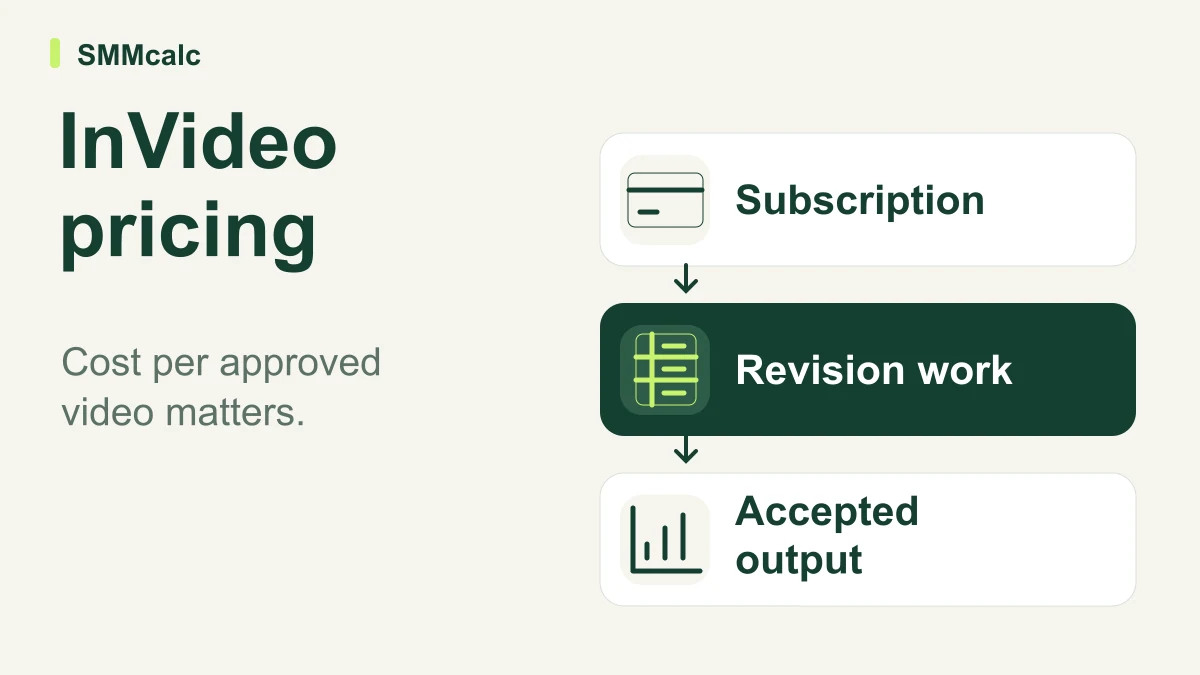
Record the work needed for one accepted result: importing, prompting, correcting, exporting and any finishing elsewhere. Compare that with your existing process before estimating a saving. A subscription does not automatically pay for itself because a vendor can generate an early draft.
InVideo's monthly plan allowances reset without carrying unused plan credits into the next cycle; separately bought credits have their own expiry rules. Occasional production can therefore favor a smaller commitment. Check the renewal date and actual billing term before assuming a displayed monthly equivalent is a monthly purchase.
How the Top Options Compare
These alternatives solve overlapping editing tasks, so use the table to identify a useful test rather than a quality ranking. A cheaper advertised entry point is only cheaper for your work if it supplies the needed duration, export, caption and asset rights. Paid entitlements can change across platform and account.
Swipe horizontally to compare every column →
| Tool | Best starting task | Why choose it | What to check |
|---|---|---|---|
| InVideo | AI-assisted development and editing with a manual timeline. | Generation and editable clips can stay in one workflow. | Model credits, mobile controls and required delivery settings. |
| Submagic | Refining a recorded short with captions and B-roll. | A focused spoken-clip workflow with trimming tools. | Included credits, duration, caption corrections and export limits. |
| CapCut | Direct editing of existing phone footage. | Available basic tools may cover a simple project without a subscription. | Pro assets, regional offer and the exported result. |
| VEED | Browser editing, subtitles and AI-assisted content. | An alternative browser workflow to test with the same brief. | Actual mobile usability, selected-plan allowance and export conditions. |
VEED documents browser editing and subtitle tools, but this review has not measured its phone interface against desktop. Its pricing FAQ describes plan-specific AI allowances and local-currency billing. Do not treat the old $19 quote or an assertion that mobile is less capable as established current evidence.
Which Tool Should You Actually Choose?
Start with InVideo when you need help developing an idea, generating material or revising a cut while keeping manual controls available. Before generating, set a small project budget and a clear acceptance condition. Continue only if the accepted result, including corrections, fits both the task and the allowance.
Start with Submagic when the input is an existing spoken recording and caption or short-form refinement is the main job. Correct names, product terms and sentence boundaries before exporting. B-roll should support the actual statement; adding a clip does not demonstrate that viewer retention will increase.
Start with CapCut when you want to cut your own footage directly and can test the required workflow in its free tools. Check the current Pro labels before building around a particular effect. Retain a clean source copy so changing an asset or choosing another editor remains practical.
Final Verdict: Test the Whole Job Before Upgrading
InVideo is a reasonable option to test when its combined AI and manual workflow addresses your task. It is not an automatic recommendation for every creator who wants to publish more. Submagic or CapCut may be a better fit when the actual bottleneck is narrower or existing tools already cover most of the work.
Check upload permissions as well as the feature list. InVideo's current terms qualify output and stock-content rights, and its privacy policy permits model-training use in the consumer/self-serve framework. A separately agreed business arrangement can differ; use approved material for an evaluation.
Keep the test small enough to evaluate completely: review the script, picture, captions and sound, then open the exported file on the intended device. The export guide lists output settings to inspect. A file that looks right in the editor can still fail your destination's requirements.
Pay when one completed example shows that the required work is supported at a cost you accept. Wait when export conditions or client-data permissions remain unclear. Keep the current tool when the new workflow adds generation costs or corrections without solving a recurring problem.
Frequently Asked Questions
Can I finish a professional project entirely on a phone?
Possibly, when the needed controls, formats and delivery route work on that device. A store description is not a stability guarantee for every project. Complete a representative import-to-export test before relying on the phone for a deadline.
Does a free app mean every export is free?
No. Free download, limited AI credits, manual editing and final export entitlements are different conditions. Check the selected assets, output settings and account offer, and avoid assuming a paid plan is necessary for every simple project.
Can I cancel after a paid InVideo test?
Cancellation stops renewal while access continues through the current period. The refund exception is conditional, generally requiring a timely request and non-use, with store-specific purchase routes. Do not budget around a guaranteed refund after generating or downloading a used project.
Do InVideo and CapCut support both iOS and Android?
Current official listings exist for InVideo on both platforms, and CapCut's help describes iOS and Android workflows. Check device and regional eligibility and the actual installed version. A browser-based signup route also does not establish every Submagic feature on every mobile browser.