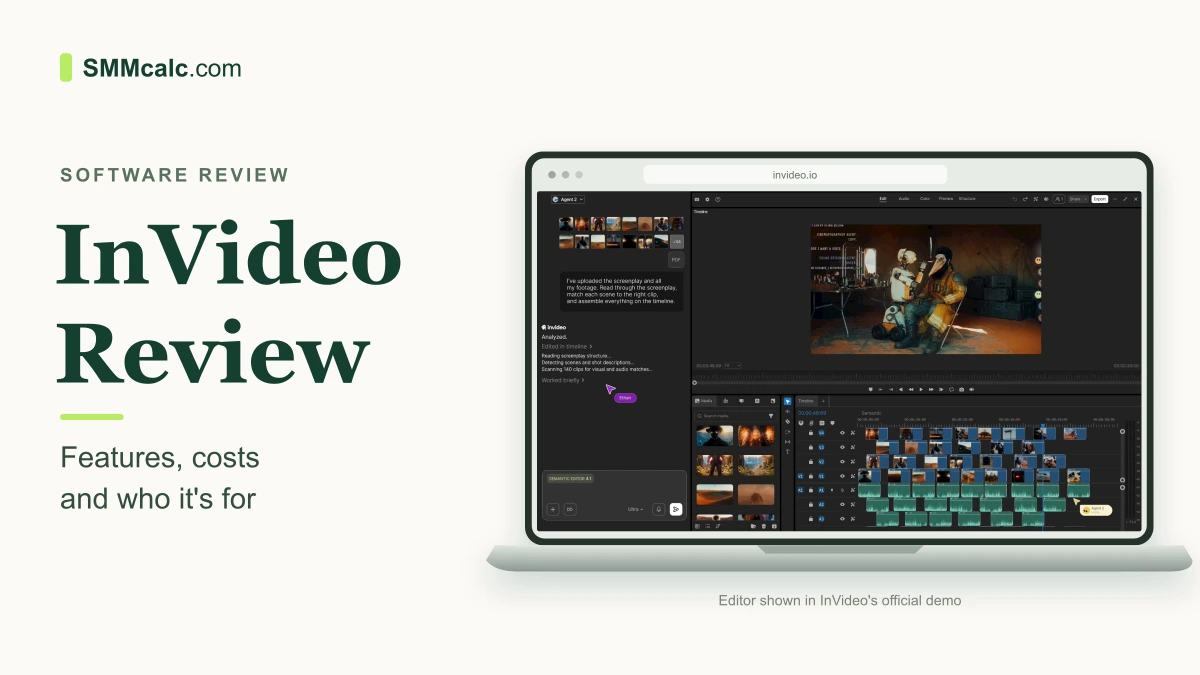
InVideo is worth considering for a photo or clip slideshow when its current editor, optional AI tools and export access fit your project. The useful test is a short sequence made from the assets you actually plan to publish. A product label or automated first pass does not establish that the result is ready to deliver.
The current InVideo Editor supports a multitrack timeline, manual keyframes, audio and color adjustments alongside AI-agent work. Those controls let you assess both assembly and later corrections. Check the exact editor available to your account rather than mixing current AI workflows with old InVideo Studio plan descriptions.
Compare the full selected subscription, AI-credit use and media permissions with a simpler slideshow workflow. This review uses documented features and terms, not a hands-on speed or quality benchmark. Keep your existing tool when it already makes the required file without a new recurring charge.
What We Will Cover
- Quick Verdict: Should You Try InVideo?
- Who should use this (and who should skip it)
- What to Check in a Slideshow Sample
- What you actually get in the free trial
- The good stuff: Where InVideo shines
- Pricing and value: Is it worth the cost?
- InVideo vs cheaper or simpler alternatives
- Final verdict: Should you start the trial?
- Frequently asked questions
Quick Verdict: Should You Try InVideo?
Try InVideo when you need to assemble photos, footage, text and sound, then revise the edit in a browser. The current Editor documentation describes direct timeline controls as well as AI assistance. For a short one-off photo sequence, compare a free workflow first instead of assuming a paid AI bundle is necessary.
A recurring workflow can justify a bundle when its editing, stock access or AI functions replace tasks you actually perform. Check what remains outside the service, including final approval and any specialist output. Counting included features is not the same as demonstrating a lower total production cost.
Who Should Use This (And Who Should Skip It)
Consider InVideo for repeated slideshow work when a representative project needs both assembly and later revisions. Bring a few real photos, the intended narration and one requested change. Check whether the workflow preserves the necessary layout, timing and readable text before relying on it for client delivery.
Use manual editing to make changes you can perform directly without consuming AI credits. Agent-assigned work can use credits even when it edits existing material rather than generating a replacement shot. Compare those two routes on the actual task instead of assuming every adjustment is free or every beginner finishes on day one.
Skip a new subscription when a free existing editor already creates the required slideshow. For a demanding job, test source formats, manual controls and recipient handoff in the current InVideo Editor, which now documents color, audio and keyframe tools. Do not infer that it either replaces every desktop workflow or lacks those controls entirely.
What to Check in a Slideshow Sample
Begin with the destination and the actual message the slideshow must carry. Choose an aspect ratio, readable text size and sequence that suit that use. No platform-wide ranking rule or guaranteed increase in organic reach is established by adding movement to photos.
Use assets you have permission to upload and publish, including product photos, testimonials and music. Check that a crop or animated zoom does not hide an important detail or change the intended meaning. A voiceover and moving image can communicate a sequence, but they do not establish a particular audience response.
Preview the whole sequence with sound and again without relying on sound. Check names, numbers, captions, image order and the final call to action. Reopen an exported sample in the intended player; a good-looking editor preview does not prove the delivered file meets the requirement.
Swipe horizontally to compare every column →
| Buying question | InVideo check |
|---|---|
| Relevant workflow | Current browser Editor combines manual timeline tools and optional AI-agent work. |
| Free evaluation | Limited weekly AI credits; confirm account export and watermark entitlement. |
| What uses credits | AI generation and agent work can consume credits; manual edits do not. |
| What to budget | The selected checkout term, users, credit allocation and any additions. |
| What still needs review | Assets, narration, timing, rights and the actual exported file. |
What You Actually Get in the Free Trial
The current free AI offer has a limited credit allocation that refreshes on Monday at 00:00 UTC. Check the amount and available workflows shown in your account instead of relying on the old ten-minute weekly allowance. Manual Editor actions do not consume credits, while AI-agent work can do so.
Export itself is documented as a no-credit action, but that does not prove every free account has unlimited unwatermarked delivery. Check your plan, the selected media and the actual export options. A watermark is a presentation condition; it is not, by itself, a legal ruling about commercial use.
The Good Stuff: Where InVideo Shines
The editor can arrange uploaded images and clips on tracks, while keyframes control supported changes such as position and scale. InVideo documents a slow zoom or pan as an editable move between two moments. Review the entire shot and refine the framing so necessary details stay visible.
Stock and generated assets can reduce the need to source every shot separately when the selected allowance and license cover the intended use. Check the actual asset, plan and restrictions before publishing. An included library does not automatically replace every external subscription or authorize every redistribution.
InVideo documents timeline sharing and review links for feedback. Use one representative revision to check what the recipient can see and whether comments identify the right moment. Confirm the required access and plan before assuming every collaborator can edit or that a shared preview completes approval.
Pricing and Value: Is It Worth the Cost?
Current subscriptions and promotional offers can change, so compare the plan actually shown at checkout. Separate its billing term, users, AI credits, stock or generated-media allowances and export access. The old Plus/Max minute-and-storage table is not a reliable description of every current account.
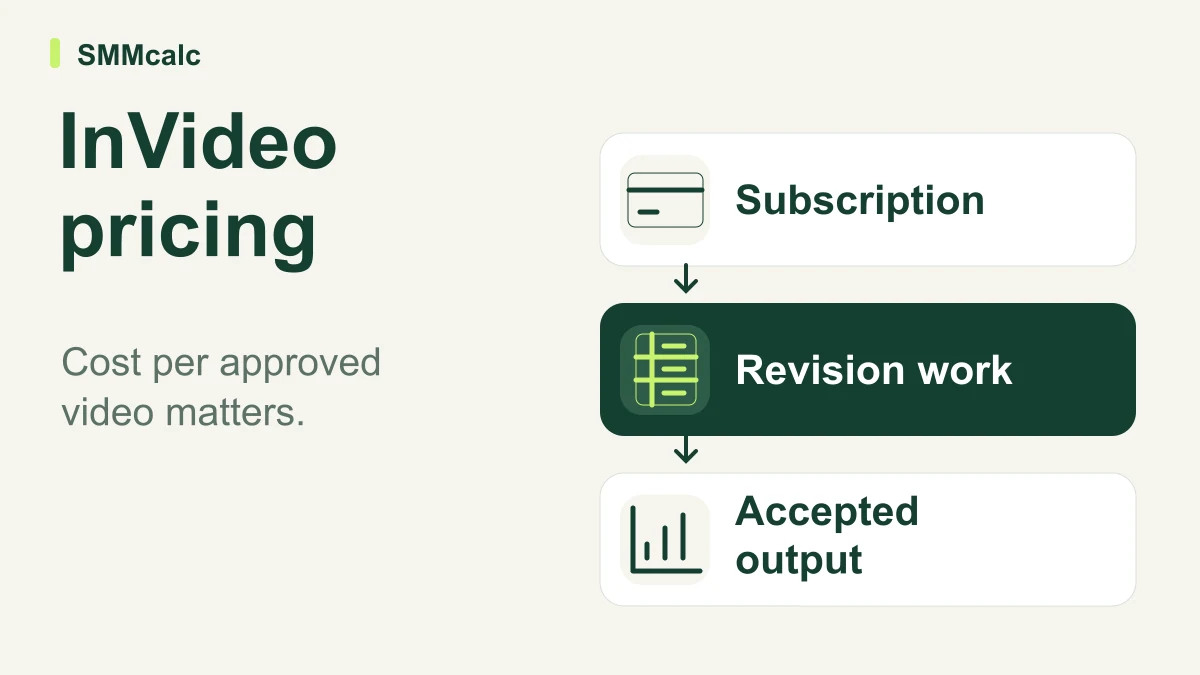
For a realistic budget, list the number of slideshows you expect to finish during the billing period and the AI requests each one may require. Include a separate allowance for regeneration after a rejected image, narration or timing choice, using the credit estimate displayed before confirming that action. Divide the selected subscription cost by the number of usable completed videos, then compare that result with a manual route that uses assets you already own; an unused allocation is not a completed deliverable.
Swipe horizontally to compare every column →
| Cost area | What to check | Why it matters | Buying limit |
|---|---|---|---|
| Free allocation | Account-displayed weekly credits and supported actions. | The allocation can limit AI evaluation. | Not a permanent unlimited-generation promise. |
| InVideo editing | Manual actions versus AI-agent requests. | Only some routes require credits. | An AI edit can consume credits without creating new footage. |
| InVideo delivery | Current export entitlement, formats and branding. | A no-credit action is distinct from plan access. | Verify with an actual sample file. |
| Selected subscription | Full term, users, credits, additions and taxes. | Annual equivalents and short offers can obscure the payment due. | Use the account checkout rather than an old monthly quote. |
When Paying Would Make Sense
Pay when repeated sample work shows that the service handles a real slideshow requirement at an acceptable total cost. Record setup, revisions and final approval that remain after the first assembly. A competitor posting videos or a large stock library is not proof that your own subscription will pay back.
Before upgrading, change one photo, correct a line of narration and revise the timing of a title. Check whether those changes remain direct edits or require new AI work. That concrete revision test is more useful than a promise of a professional video in under an hour.
Check permission to upload client material and the applicable data terms before choosing an AI workflow. InVideo self-service terms allow specified user-data use for training, with enterprise arrangements treated separately. Review the selected subscription and seven-day unused-subscription refund conditions before spending credits or relying on a refund.
InVideo vs Cheaper or Simpler Alternatives
Compare each alternative against the same photo sequence and required revision. InVideo now provides manual editing as well as AI work; Canva, Pictory and CapCut have different creation routes and plan limits. The useful choice is the one that produces the required file with the needed permissions and manageable remaining work.
Canva offers slideshow creation in a design-led workflow with a free entry point. Check that the chosen template, media and export are available under the intended account and license. Do not assume every asset or advanced feature is included in the free option.
Consider Pictory when turning a script or existing written content into a video is the repeated task. Review its scene suggestions, narration, source rights and current export limits. Automated matching does not prove every selected shot is accurate or that the final revision is faster than a manual edit.
CapCut is relevant when its available mobile, desktop or web editing route fits your device and project. Free and paid features, templates and licensing can vary, so inspect the actual tools and media you use. No comparative stability or learning-speed result is established here.
Swipe horizontally to compare every column →
| Tool | Relevant workflow | Why consider it | Check before delivery |
|---|---|---|---|
| InVideo | Browser edit with optional AI generation or agent work. | Current manual timeline, motion and audio tools. | Credits, actual export access, assets and data terms. |
| Canva | Design-led photo/video layouts. | Free entry point and reusable graphic assets. | Premium elements, selected account and export rights. |
| Pictory | Script- or text-led video assembly. | Suggested scenes and narration workflow. | Current plan, source selection and revision/export limits. |
| CapCut | Device-appropriate timeline and social-video editing. | Available manual tools and templates. | Platform, paid tools and each asset license. |
Choose InVideo when the sample browser edit, needed revisions and delivery access justify the selected plan. Compare Canva for a design-led photo sequence, Pictory for repeated script-led assembly and CapCut for a suitable device-based edit. Keep a free workflow when it covers the entire task without premium assets or features.
My Honest Take
InVideo is a relevant slideshow option because its current editor combines direct timeline controls with optional AI work. Its value depends on the project, selected plan and actual corrections still required. This review does not establish an independent quality ranking or measured subscription savings.
Keep a copy of the source assets and reopen the delivered file after making a representative revision. Check cropping, text, timing, narration and music rather than judging only the first preview. If those checks expose missing controls or unsuitable output, wait or use another workflow.
Use the free evaluation access actually available to build a small, non-sensitive sample. Check the current InVideo offer only after the file and revision process meet your requirements. Do not pay solely because a signup is easy or because an old review promises unlimited free delivery.
Frequently Asked Questions
Can I use my own media in the slideshows?
InVideo Editor documents importing video, images and audio. Upload only material you have permission to use, then check its appearance and timing in the actual sequence.
Confirm any format or account limits with the selected workflow.
Does the free plan allow commercial use?
A watermark does not by itself determine commercial rights. Review the current service terms, selected plan and license for every stock, generated, music or uploaded asset.
Confirm the intended use and export entitlement rather than assuming paid access removes every restriction.
Is it easy for complete beginners to use?
The product offers AI assistance and direct editing controls, but the task determines what you must learn. Test a small sequence and complete one revision and export before committing an important project.
No completion time or suitable first-pass result is guaranteed.
Get started with InVideo